Security SaaS platform B2B & B2C
A smart home control and monitoring system that integrates with a wide range of devices, such as detection and alarm products. The product is designed for certified technicians and private customers. This system allows remote control, provides accessible menus, and offers a clear installation process.
Role: A-Z Project UXUI Leadership
Company: Maximum Security
Collaboration: CEO, R&D team, PM.

50%
Efficiency improvement
+

Cost savings & systems
+

Operational Confidence
Streamlined workflows for faster daily operations
Reducing technical consulting costs
Clear visibility and trust in system state
A centralized system became essential to manage hierarchy, permissions, and scale.

The Context
Because the platform serves both B2B and B2C users, it must support complex hierarchies and role-based permissions.To scale efficiently, the system needed one clear, centralized control experience.

Research & Discovery
Identified the opportunity to digitize Maximum’s ecosystem and turn complex hardware systems into a connected, insight-driven platform.Core GapHardware-rich ecosystem —but no mobile control, visibility, or real-time intelligence
The Challenge
As Maximum expanded across commercial and residential environments, technicians were managing dozens of devices through fragmented tools. This created confusion, slower setups, and growing operational friction.
AI system management


Physical Smart Hub product


The company's Smart wireless devices

Why This Problem Matters
1. Reliability = Real Security
When users can’t clearly see what’s protected, which detectors are active, or where events occur — the system’s full security potential is compromised, increasing risk.
2. One System, Multiple Users
Maximum serves homeowners, technicians, and facility managers. A one-size-fits-all interface leads to misconfigurations, false alarms, and unmonitored zones.
3. Operational Efficiency
Installers and service providers need clarity and speed. A complex or unclear UI slows deployment, raises costs, and increases human error.

User Research
As part of my research, I conducted face to face interviews, and those part of the questions i asked pro technisians :
-
In-depth interviews with professional security technicians.
-
Observations on-site during installation and configuration.
-
Informal conversations with business owners and homeowners.
-
Review of Maximum’s product line, capabilities, and system logic.
-
Analysis of typical workflows for setup, troubleshooting, and daily use.
Some of the Interview Questions
1.Which elements are essential for you during the system setup and configuration process?
2.What features or information would you expect to see immediately on the main dashboard?
3.Which actions do you perform most frequently during installation or troubleshooting?
4.How would you prefer the app to display building zones or room distribution?
5.Where do you feel the current tools slow you down?
6.What makes a configuration “successful” from your point of view?


⭐ Insights from Research
⭐ Technicians need a clear, fast configuration flow
Maximum’s hardware ecosystem is powerful, but technicians struggle with:
-
Repetitive steps
-
Searching for the correct zone
-
Moving between menus
-
Opportunity: Create a guided, linear setup flow + quick actions
⭐ System hierarchy is unclear to many users
Many users struggle to map the system’s technical structure to real rooms or devices in their home, leading to configuration errors and uncertainty during setup.
Opportunity: Simplify terminology and visualize hierarchy to reduce cognitive load
⭐ Businesses need high-level monitoring, not complex details
Managers want to know:
-
Is the building secured?
-
Are all devices functioning?
-
Do employees have the right access?
-
Opportunity: Provide a clean dashboard with system status at a glance.
Who We’re Designing For:

Professional Smart-Home / Security Technician | B2B & B2C
Manages hundreds of devices across multiple clients. Performs installations, configuration, status checks, filtering, and remote troubleshooting.
Goals:
-
Fast access to real-time alerts
-
Reduce configuration errors
-
Quickly locate faulty devices (area/floor/room)
-
Predict issues before failures occur

Security Manager / CEO / Operations Manager (Enterprise) | B2B
Oversees entire building security: device health, employee permissions, stability, and event trends.
Goals:
-
High-level system insights
-
Predictive maintenance for operational continuity
-
Monitoring trends, anomalies, and risk areas
-
Centralized dashboard for all buildings

Security Operation Centers (SOC) | B2B
Manages live security environments across multiple sites, handling alerts, device status changes, and incident response. Uses the dashboard to monitor trends, prioritize events, and coordinate technicians in real time.
Goals:
• Maintain full situational awareness across all connected locations
• Identify critical alerts quickly and escalate when needed
• Track device health, status changes, and recurring issues
System Flow Decision
-
Reduced onboarding friction
-
Faster system activation
-
Clear role-based access
-
Scalable device management
-
Improved operational efficiency
-
Lower support dependency
User Flow
Sign Up
1.Create an account + receive PIN
2.Select account type: Pro technician / Classic
3.Language
Registration Successful
1.Account created
2.Redirect to onboarding
Onboarding
1.General Guidance about the system
2.Introduction to app features
QR Scanning
1.Adding new products
2.Assign devices to areas/zones
Hub QR Scanning
1.Hub Scanning
2.Connect to the system
User Profile
1.Personal Info
2.Permissions management
Home Page
1.Hub management
2.Devices list
3.Adding products
Done
Connect products to the system
Add More
Add more devices
Introduction
Push notification
1.Transer system
2.Add new person
User Management
Adding new user to the system (Permissions)
Choose Technician
Decline + Reason
Decide Later
System management
Permissions & system settings
1.UX Specification Device Onboarding Screen
A clear step-by-step onboarding flow reduces technician errors and shortens installation time. The design uses large touch targets, high-contrast labels, and instant feedback states to support quick scanning and device pairing.

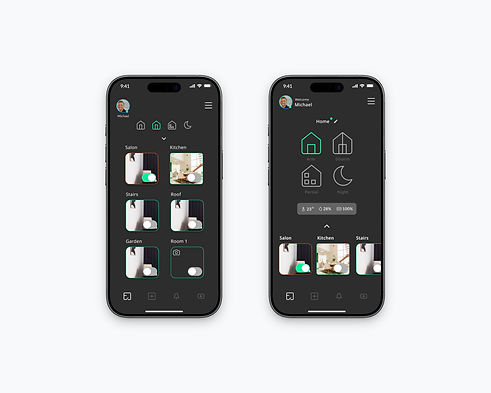
2.Remote Control for Multi-Zone Device Management
The following screens explore two layout variations for a remote-control interface that allows users to quickly activate, deactivate, and monitor devices across different areas in a building. Because technicians and homeowners often need to manage multiple zones in real time, the design focuses on simplifying navigation and reducing cognitive load.

Efficiency
This screen provides a fast, intuitive overview of all rooms, allowing users to identify device status at a glance and toggle actions with minimal effort. The visual grid layout reduces cognitive load, accelerates navigation, and supports quick decision-making for both technicians and end-users. Persistent mode controls (Arm/Disarm/Partial/Night) ensure seamless transitions without leaving the screen, improving workflow speed and reducing errors.

Device Management Dashboard
The main devices screen provides technicians and homeowners with an at-a-glance understanding of system status. Clear labeling, real-time indicators, and a structured list layout help users quickly identify device health, location, and connectivity. The “Add devices” CTA is persistently available at the bottom, making it easy to expand the system without navigating away. This design supports efficient monitoring and seamless scaling of the smart-home or security ecosystem.
Zone configuration
This settings screen organizes zone configuration into clear sections, allowing technicians to quickly adjust security behaviors, sensitivity levels, and diagnostic modes. The layout supports fast scanning, minimizes errors, and balances advanced flexibility with an intuitive control structure.

Community & Support
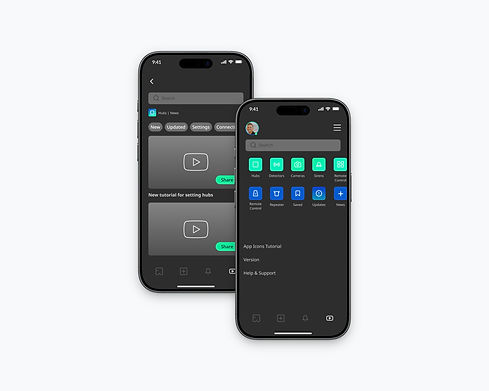
This screen centralizes all system resources—device categories, saved items, updates, and tutorials—into a clean, icon-based layout.
The system helps users and technicians quickly locate tools, troubleshoot issues, and access visual guides without navigating deep menus. The clear hierarchy and consistent iconography improve discoverability and reduce cognitive load, especially in complex smart-home ecosystems.

Conclusions
The project reveals several core insights that shaped the final design:
-
Simplified onboarding: A clear and consistent flow for adding devices helps users quickly understand how physical products connect to the system.
-
Environment-based structure: Organizing devices by real-world spaces improves orientation and speeds up daily interactions.
-
Efficient control & monitoring: Providing high-level status at a glance, with easy access to detailed settings, supports both technicians and homeowners.
-
Built-in guidance: Tutorials and contextual tips reduce confusion and empower users to operate the system independently.
These insights helped create a system that is intuitive, scalable, and aligned with users’ mental models.
AI-Driven Security System

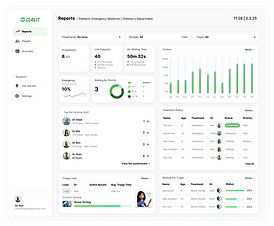
Clalit B2B Medical System